OneTenant Migration First Steps
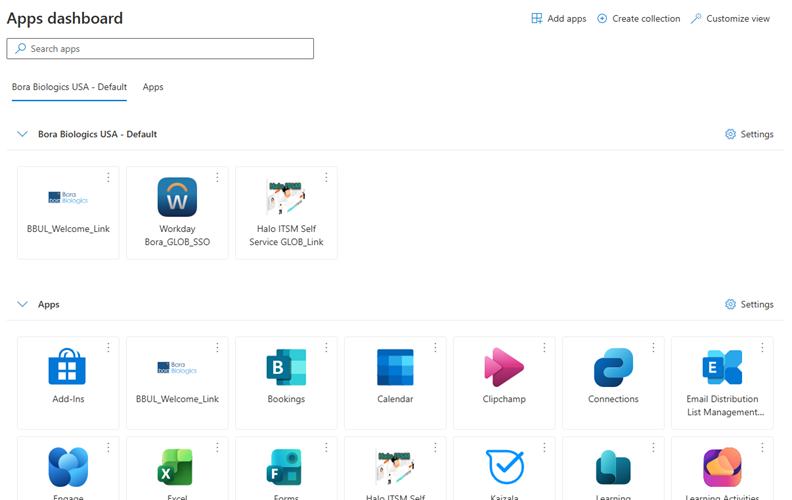
Post migration, the first step you will be required to reset Google Chrome and Microsoft Edge settings, login to MyApps and set up Microsoft Authenticator to login. Follow instructions below and then you will be taken to the OneTenant Project Resources SharePoint site for next steps.
If you cannot complete these steps, email IT-Migration@bora-corp.com from your personal email.
After these steps are complete, for any assistance create a ticket on Halo at https://help.upsher-smith.com/portal
11/22 - OneTenant migration complete. You may proceed with below steps
Step 1: Login to your computer and reset Microsoft Edge or Google Chrome settings
Please note this will reset your startup page, new tab page, search engine, and pinned tabs. It will also turn off all extensions and clear temporary data like cookies. Your favorites, history and saved passwords will NOT be cleared. If you do not perform this step, you may experience ongoing login issues and it is recommended you do this on both Edge and Chrome
- Microsoft Edge: Open Edge and copy and paste the following URL into your browser and click Enter
edge://settings/resetProfileSettings
Click Reset button
- Google Chrome: Open Chrome and copy and paste the following URL into your browser and click Enter
chrome://settings/resetProfileSettings
Click Reset settings button
- Close all browsers and navigate back to https://ithelp.bora-corp.com using Microsoft Edge or Google Chrome
Step 2: Login to you Microsoft MyApps with your Bora account
- Navigate to https://myapps.microsoft.com on your computer.
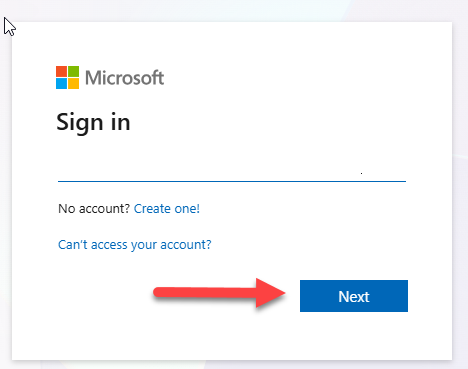
- Enter your Bora Email Address and click Next.
If you do not see login prompt as above, repeat Step 1
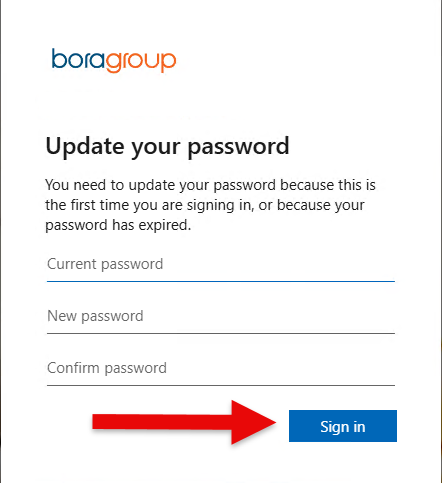
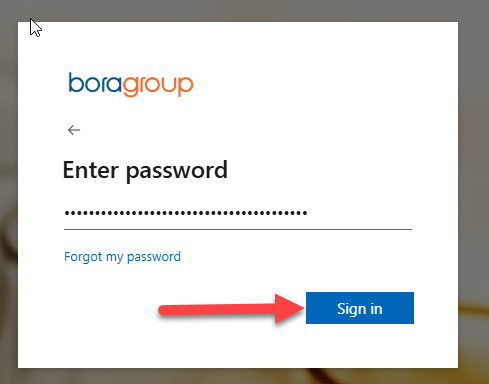
- Enter your Password and click Sign in.
- Click My Account and Security Info
If you see boragroup on the top left, you have successfully logged in.
Step 3: Setup and Configuration of Microsoft Authenticator
Applicable for all MFA users
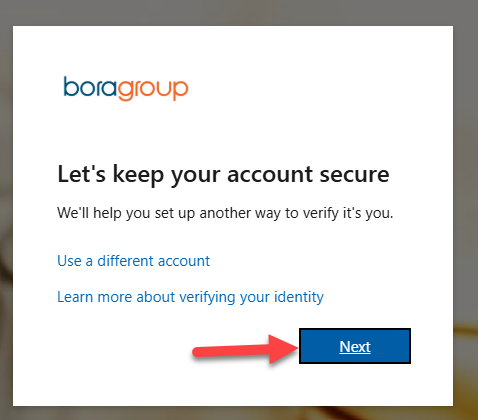
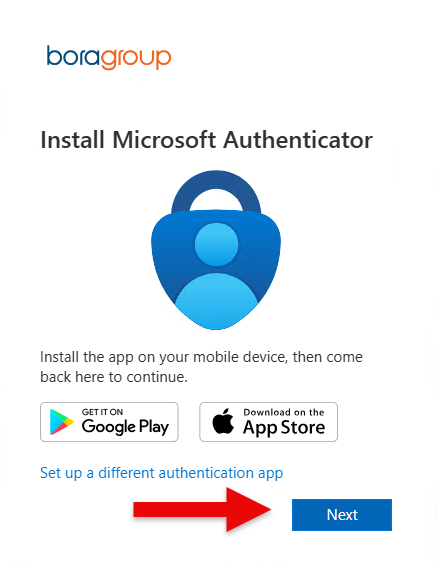
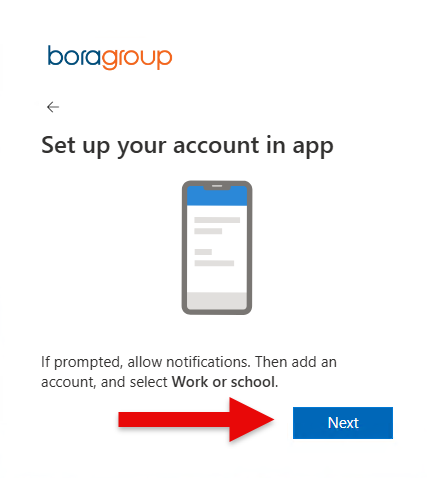
- Click Add sign-in method and Microsoft Authenticator and Next until you see a QR code
- Open Microsoft Authenticator on your phone. Find entry with bora-corp.com address and tap the next arrow
- Tap Remove account and Continue. If you see a screen that asks to sign out of all apps, tap the red text All apps on this device
- Tap ignore
- If you see a screen to login to boragroup, tap Cancel
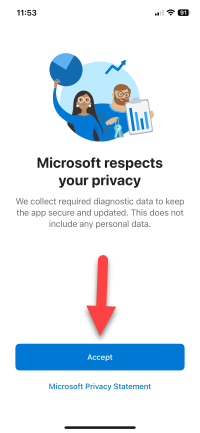
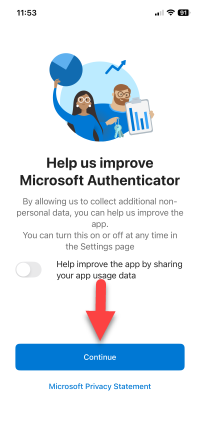
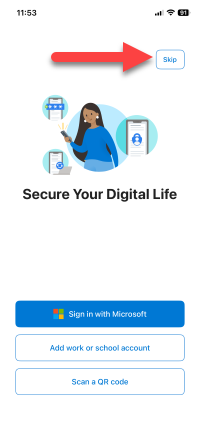
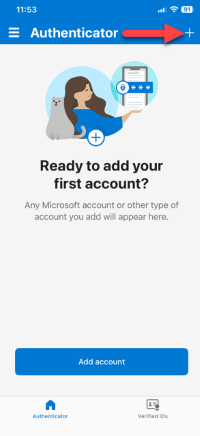
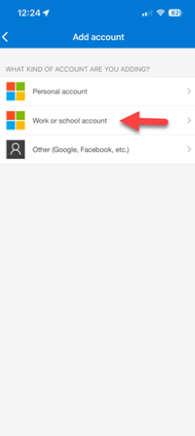
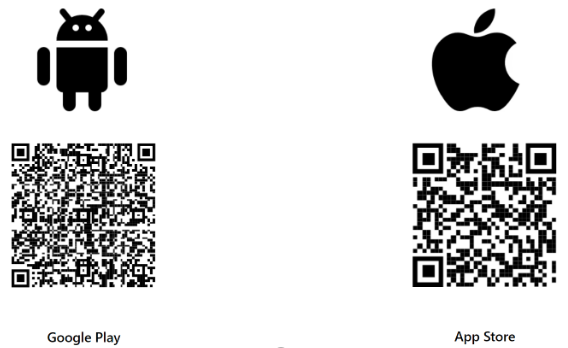
- On the bottom right of your phone, tap the following
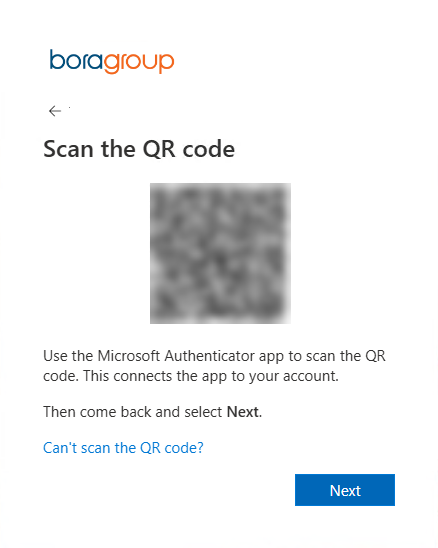
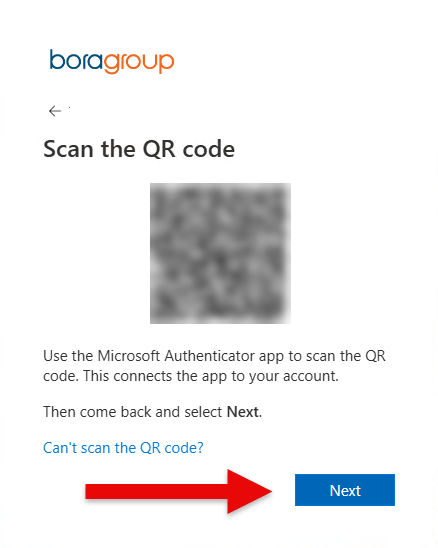
- Scan the QR code on your computer screen that looks like this. Once scanned, click Next
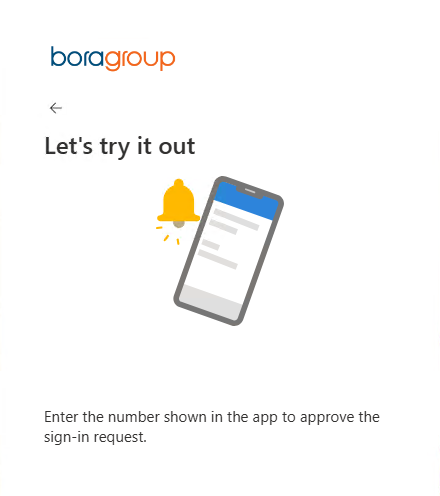
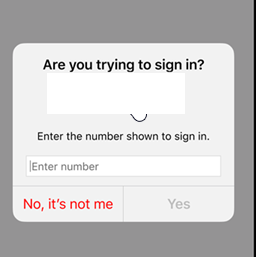
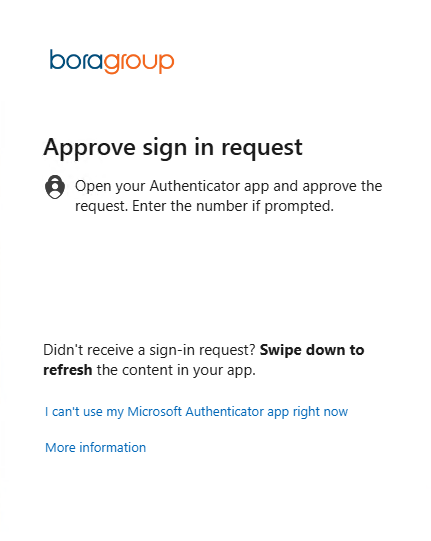
- A push notification will be sent to your phone. Enter the number on computer screen on your phone and tap Yes


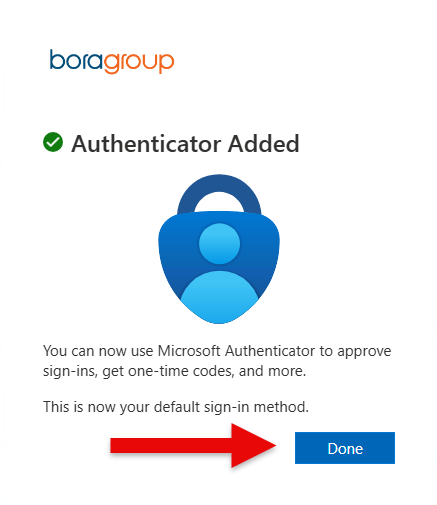
- Microsoft Authenticator has been setup and you can click Done on your computer
Congratulations you have successfully completed initial steps for the migration. The next steps are found at the following location
https://boraglobal.sharepoint.com/sites/GLOBAL-PROJ-BoraOneTenantResources